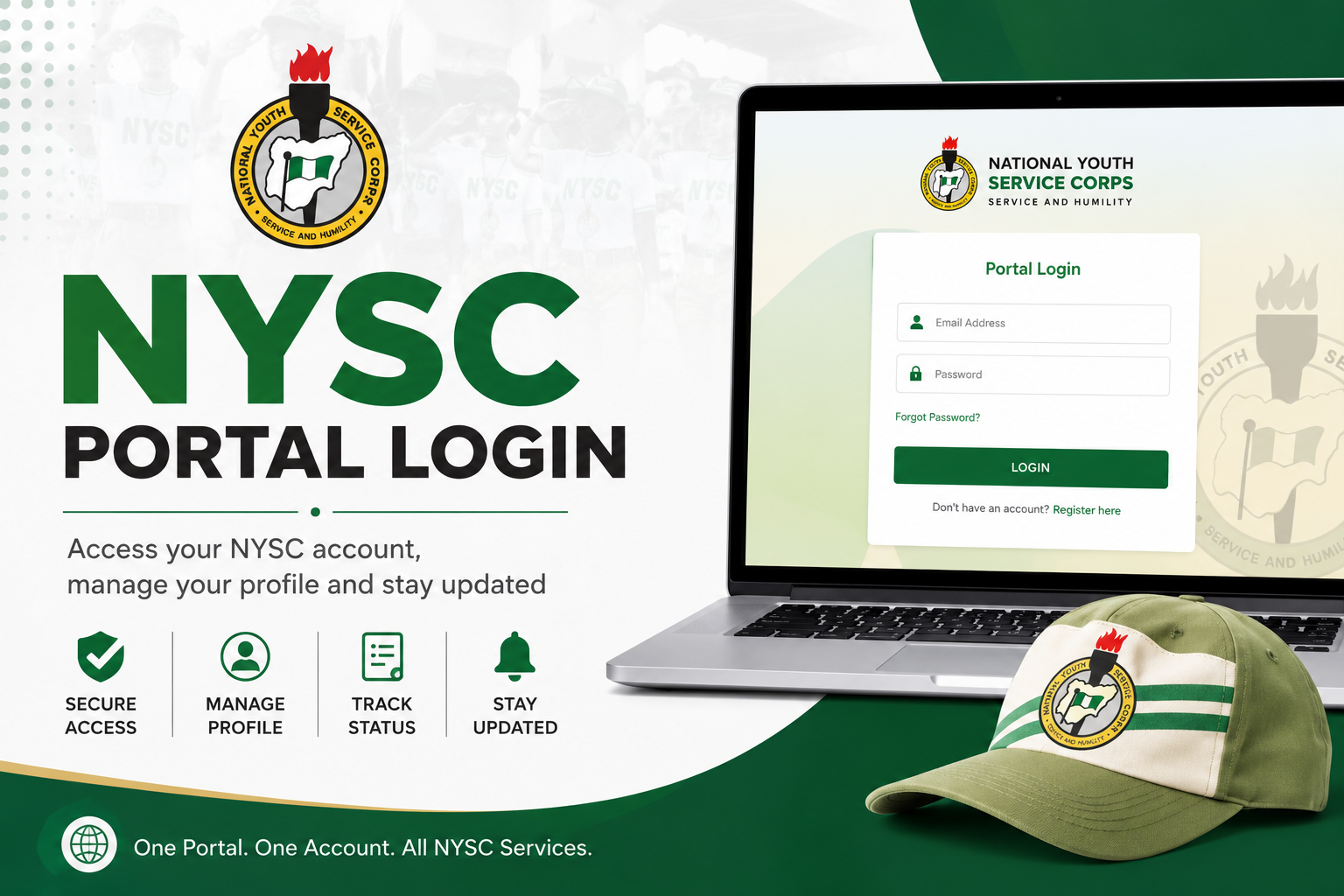
The problem is that a lot of people struggle with it. Some cannot log in at all, some forget their credentials, and others log in successfully but have no idea what to do once they are inside. This guide covers all of that — what the NYSC portal login process looks like, how to access your account step by step, what you can do on the portal, and how to fix the most common login problems corps members run into.
What Is the NYSC Portal?
The NYSC portal is the official online platform of the National Youth Service Corps. It is the digital hub where everything related to your service year is managed. Before the portal existed, corps members had to physically visit NYSC offices for most things. Now, from the moment you are mobilised to the day you receive your discharge certificate, the portal is your primary point of contact with NYSC.
The official NYSC portal address is portal.nysc.org.ng. This is the only legitimate URL. Be careful of fake websites that look similar — always type the address directly into your browser or bookmark the real one the first time you visit.
What Can You Do on the NYSC Portal?
Before we get into how to log in, it helps to understand what the portal is actually used for. Here is a breakdown of the main things you can do once you are logged in:
- Complete your NYSC registration — New corps members use the portal to fill in their biodata, upload their documents, and complete the mobilisation process.
- Print your call-up letter — Your call-up letter, which contains your state of deployment and camp details, is downloaded directly from the portal.
- Check your posting and redeployment status — After camp, you can log in to see your primary place of assignment (PPA) and apply for redeployment if needed.
- Submit your monthly clearance — Corps members use the portal to confirm their activities each month as part of the clearance process.
- Access your certificate information — After passing out, some batches can view and verify their certificate details through the portal.
- Update personal information — If any of your details need to be corrected, the portal is where you do it.
- Track your NYSC allowance status — In some cases, payment and allowance information is also accessible through the portal.
As you can see, the portal is not just a login page — it is the central tool for managing your entire service year. Getting comfortable with it early will save you a lot of stress.
What You Need Before You Log In
To log in to the NYSC portal, you need the following:
- Your NYSC registration number or call-up number — This is assigned to you during the mobilisation process. It appears on your call-up letter and any official NYSC correspondence you have received.
- Your password — The password you created when you first registered on the portal.
- A stable internet connection — The NYSC portal can be slow at peak times, especially during mobilisation seasons. A stable connection helps.
- A compatible browser — Google Chrome or Mozilla Firefox works best. Avoid using old or outdated browsers as they can cause display issues on the portal.
If you have never registered on the portal before, you will need to create an account first before you can log in. The registration process is separate from the login process — we will cover both.
How to Login to the NYSC Portal — Step by Step
Follow these steps carefully to log in to your NYSC portal account:
- Open your browser — Launch Google Chrome, Mozilla Firefox, or any up-to-date browser on your phone or computer.
- Visit the official NYSC portal — Type portal.nysc.org.ng directly into the address bar and press Enter. Do not search for it on Google and click random links — go directly to the URL to avoid landing on phishing sites.
- Locate the login section — On the portal homepage, you will see a login form. It usually has two fields — one for your registration number or call-up number, and one for your password.
- Enter your registration number — Type in your NYSC call-up number or registration number exactly as it appears on your call-up letter or NYSC documents. Make sure there are no extra spaces before or after the number.
- Enter your password — Type in the password you created during registration. Passwords are case-sensitive, so make sure your caps lock is off unless your password includes capital letters.
- Click the Login button — Once both fields are filled correctly, click the login or sign-in button. The portal will verify your credentials and take you to your dashboard if everything is correct.
- Access your dashboard — Once logged in, you will land on your personal dashboard where you can see your details, access different sections of the portal, and carry out whatever task you came to do.
That is all it takes when your credentials are correct and the portal is working normally. The entire process should not take more than a couple of minutes.
How to Register on the NYSC Portal for the First Time
If you have been mobilised but have not yet created a portal account, here is how to register:
- Go to portal.nysc.org.ng and look for the registration or sign-up option on the homepage.
- Select your mobilisation batch — You will be asked to select the batch and year you are being mobilised under.
- Enter your personal details — This includes your full name, date of birth, institution attended, course of study, and other biodata information. Make sure everything matches exactly what appears on your certificate and other official documents.
- Upload required documents — You will need to upload a passport photograph and possibly your certificate or result slip depending on what the current batch requires. Follow the upload specifications carefully — wrong file sizes or formats will cause errors.
- Create a password — Choose a password you will remember. Write it down somewhere safe because forgetting it will slow down your process later.
- Submit your registration — Once all fields are complete and documents are uploaded, submit your registration. You will receive a confirmation and your registration number, which you will use to log in going forward.
Common NYSC Portal Login Problems and How to Fix Them
The NYSC portal is a government platform, and like many government platforms in Nigeria, it has its fair share of technical issues. Here are the most common problems corps members encounter and what to do about each one.
1. Forgotten Password
This is probably the most common issue. If you cannot remember your password, do not keep guessing — repeated wrong attempts can sometimes lock your account.
Instead, look for the “Forgot Password” link on the login page. Click it and enter the email address you used during registration. You will receive a password reset link in your inbox. Follow the link to create a new password.
If you no longer have access to that email address, you will need to visit the NYSC state secretariat or contact NYSC support to get your account details sorted out.
2. Incorrect Registration Number
Some corps members enter their call-up number incorrectly — wrong format, extra characters, or mixing up letters and numbers that look similar. Double-check your call-up letter and enter the number exactly as it appears. If your call-up number has slashes or dashes, make sure you include them correctly.
3. Portal Not Loading or Very Slow
The NYSC portal experiences heavy traffic during mobilisation periods — when batches are being registered, when call-up letters are being printed, or right after camp. During these periods, the portal can be extremely slow or temporarily unavailable.
The best approach is to try logging in during off-peak hours — early in the morning or late at night. Avoid trying during the afternoon when traffic is highest. If the portal is completely down, wait a few hours and try again. Refreshing the page repeatedly usually does not help.
4. Page Not Displaying Correctly
If the portal loads but looks broken — missing buttons, overlapping text, or forms that do not respond — the problem is likely your browser. Switch to Google Chrome or Mozilla Firefox and try again. Also make sure your browser is updated to the latest version. Clearing your browser cache and cookies before logging in can also help resolve display issues.
5. Account Locked or Suspended
If you enter the wrong password too many times, your account may get temporarily locked. In this case, wait for some time before trying again, or use the forgot password option to reset your credentials. If the account remains locked, contact NYSC support directly.
6. Email Not Receiving Password Reset Link
If you requested a password reset but the email is not coming, first check your spam or junk folder — it often ends up there. If it is genuinely not arriving, the email address on your account may have a typo or may no longer be active. Visit the NYSC secretariat in this case to have your email address corrected.
7. Registration Number Not Recognised
If the portal says your registration number does not exist, there are a few possible reasons. Your registration may not have been fully processed yet, there may be a data entry error from when you registered, or you might be using the wrong number format. Contact your institution’s NYSC liaison officer or visit the NYSC state secretariat to verify your registration status.
Tips for Using the NYSC Portal Without Stress
Beyond just logging in, here are a few habits that will make your overall portal experience smoother:
- Save your login details somewhere secure — Write down your registration number and password immediately after creating your account. Store them in a place you will not lose — a password manager app, a secure note on your phone, or even a physical notepad kept somewhere safe.
- Use a personal email address — Do not register with a school email that you will lose access to after graduation. Use a Gmail or similar personal account that you own long-term.
- Do not share your login details — Your NYSC portal account is personal. Do not give your credentials to anyone, including people who offer to help you with portal issues. Scammers sometimes pose as helpers to gain access to accounts.
- Log out after each session — Especially if you are using a shared or public computer. Always log out properly when you are done.
- Check the portal regularly during your service year — Important updates, clearance deadlines, and redeployment notices are posted on the portal. Checking it regularly ensures you do not miss anything critical.
NYSC Portal Contact and Support
If you have tried everything and still cannot access your account, your best options for getting help are:
- NYSC official website — Visit www.nysc.org.ng for official contact details and support channels.
- NYSC state secretariat — Visit the secretariat in your state of deployment in person. Bring your call-up letter and any other NYSC documents as identification.
- NYSC headquarters — For more serious issues, you can contact the NYSC headquarters in Abuja directly through the contact information listed on the official website.
Avoid unofficial WhatsApp groups or third-party websites that claim to help with NYSC portal issues for a fee. Most of them are scams. Always go through official channels.
Final Thoughts
The NYSC portal is an essential tool for every corps member, and knowing how to navigate it properly makes a real difference throughout your service year. Once you understand how the login works, what the portal offers, and how to troubleshoot the common issues, the whole experience becomes a lot less frustrating.
Bookmark the official URL — portal.nysc.org.ng — save your credentials somewhere safe, and make a habit of checking the portal regularly throughout your service year. That alone will keep you ahead of most of the problems corps members complain about.
If this guide helped you, share it with a fellow corps member who might be struggling with the portal. And if you have a specific problem that was not covered here, drop it in the comments section below and we will do our best to help.